 FinCampX
User Guide
Every feature, and how each number is calculated. Also in Português.
1. Core concepts
FinCampX tracks money for one person and for a couple who split costs. Five ideas explain the whole app:
| Concept | What it means |
|---|---|
| Expense | Money going out. Personal (only yours) or shared (split with a partner). |
| Income | Money coming in: Salary, Freelance, or Transfer. |
| Adjustment | A balance-only correction. It doesn't appear in reports or category totals. |
| Paid / Received | The single most important switch. It means the money actually moved. |
| Settlement | A real transfer between you and your partner to clear a debt. |
The one exception: the Settlements balance. A shared expense counts toward the all-time partner balance (Settlements) the moment you record it, whatever its date, paid or still pending. It represents an agreed arrangement to split a cost, not a completed cash transfer, so it doesn't wait for Paid the way Real Cash does. It only moves down again when a settlement is recorded. The Expenses header's own "I owe / Partner owes" is a separate, narrower view. It also doesn't wait for Paid, but it does wait for the expense's own date to arrive; see how each is calculated.
Ordering and viewing any list
Every list in the app (Expenses, Incomes, Activity, Categories, Accounts and Settlements) offers the same two choices. On iPad and Mac they sit as two controls beside the filters; on a phone they live behind one button (it shows the view you're in, cards or table) next to the search field, so they cost no room on screen:
- Order. Tap it to flip between Newest first and Oldest first (or A–Z / Z–A on lists of names, like Categories and Accounts). Days and the rows inside each day always follow the same direction.
- Cards / Table. Cards are the roomy default. Table puts the same rows into tighter, aligned columns (roughly half the height per row, so far more of the month fits on one screen) with the day headings kept as grey bands between groups. Tapping a row still opens it, and the status cell is tappable, so Paid/Pending and Received/Expected stay one tap away even without the swipe.
Each list remembers its own choice, so putting Expenses in a table does not rearrange Accounts. On a phone the table drops its least important column (Category, say) to keep the amounts readable; on iPad and Mac it shows every column.
2. Signing in
Two ways in, use whichever is easiest:
- Email & password. Create an account with your email. Forgot password? sends a reset link by email. Tap it, set a new password on the Reset Password screen, and you're back in.
- Sign in with Apple. One tap, no password to remember. If you already have an email/password account under the same email, Sign in with Apple links to it automatically. You end up in the same account, never a duplicate.
Once you're in, link a partner from More → Settings → Partner to unlock sharing, splits, and settlements, see Sharing & splits.
3. Dashboard
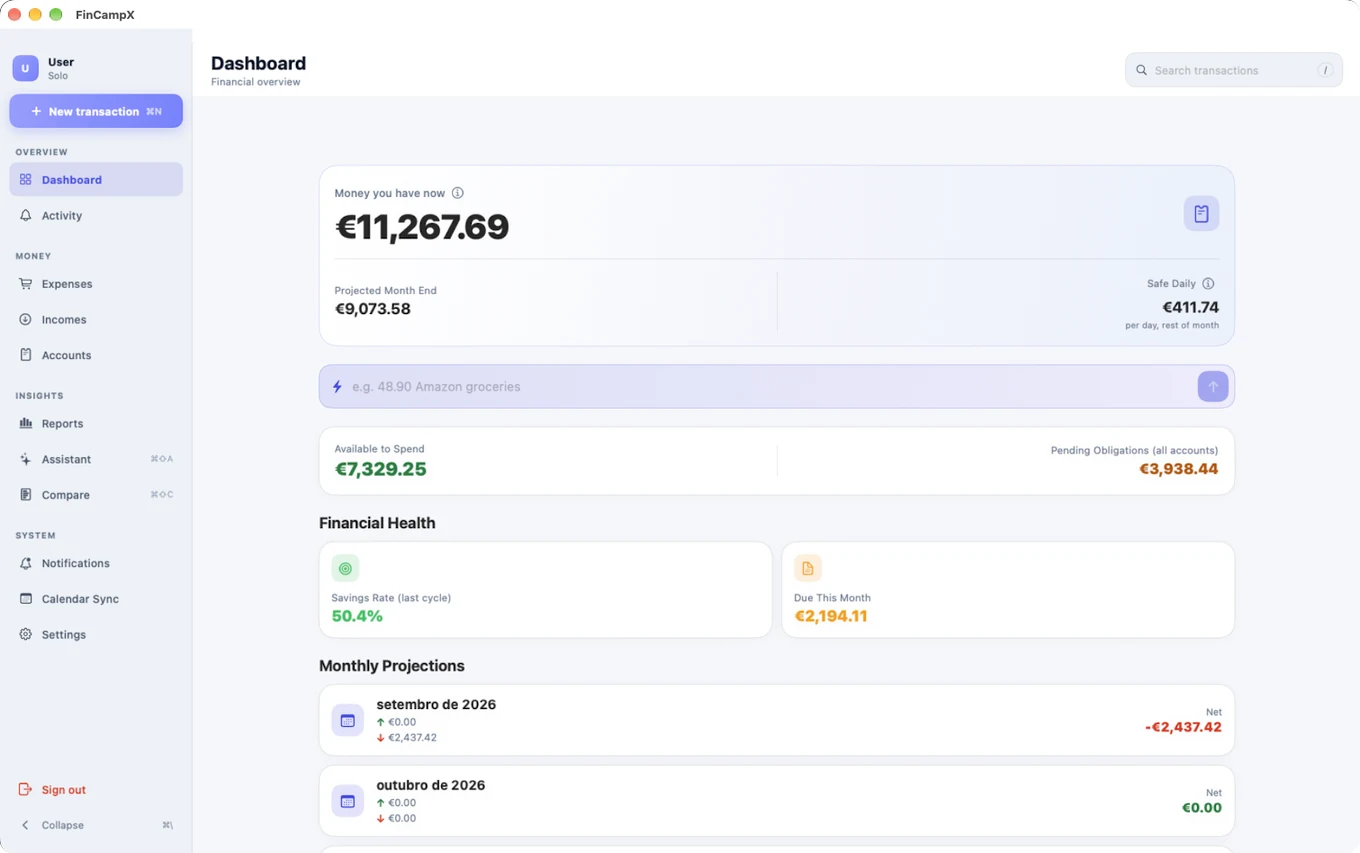
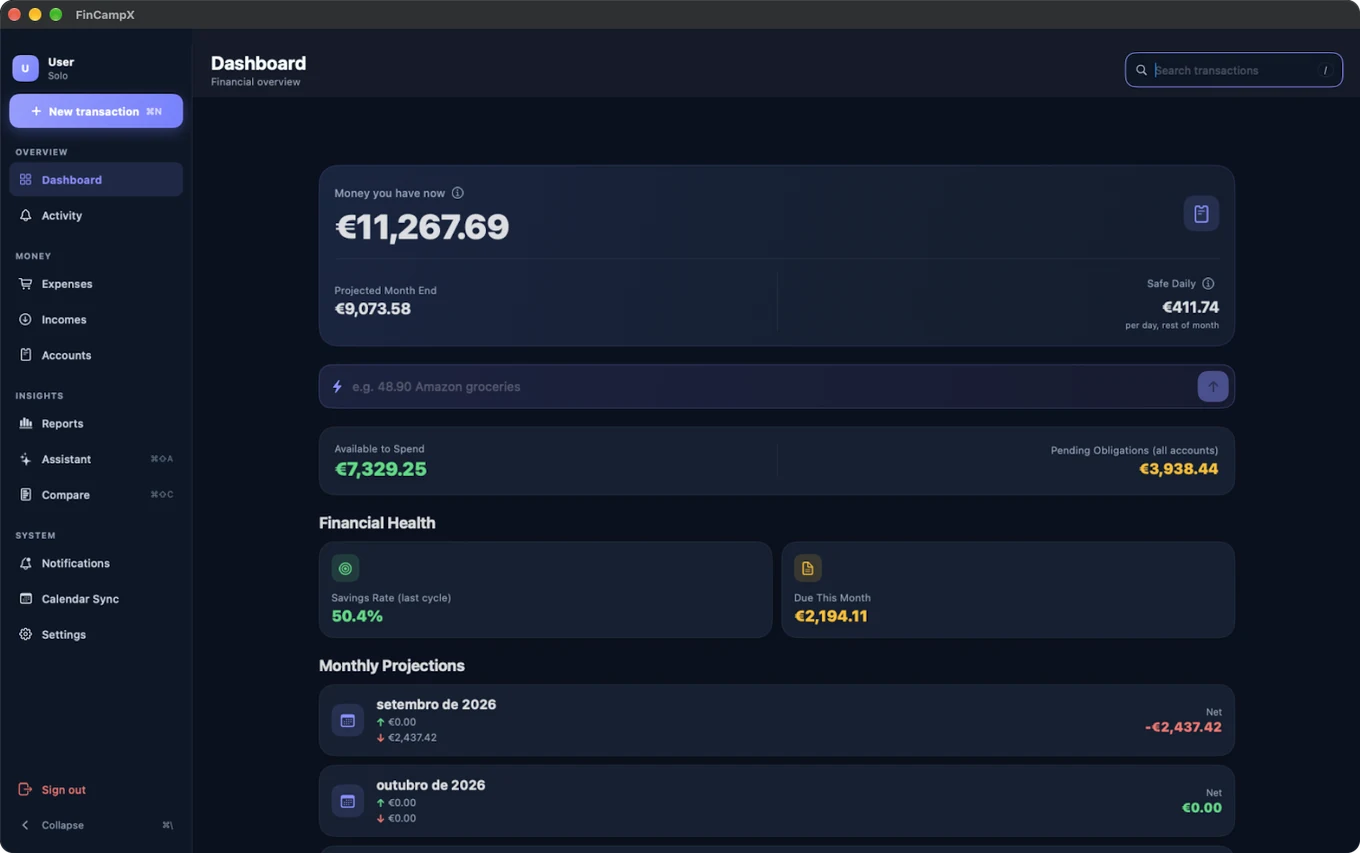
Your financial overview at a glance.
Real Cash
The money you can spend right now, across your spendable accounts. It is calculated, never typed in: each account starts from the balance you last reconciled and adds only what happened since, see how Real Cash works. Savings pockets are listed separately, because that money isn't spending money. For the per-account breakdown behind this total (including the joint account and "who owes whom"), see Accounts and Settlements.
Projected Month End
Where you'll land by the end of the month if everything currently planned happens: Real Cash plus expected incomes minus pending expenses.
Safe Daily
How much you could spend per day for the rest of the month without going negative: your Available to Spend divided by the days left.
Available to Spend / Pending Obligations
Available to Spend is your Real Cash minus Pending Obligations. Pending Obligations is everything you still owe up through the close of this cycle: overdue expenses from earlier cycles plus whatever's still due before this one ends. A recurring bill is resolved occurrence by occurrence against its own schedule: a cancelled subscription stops counting the moment its last real charge is confirmed, instead of forever, and a subscription you set up months ago still counts when it's genuinely due, not just in the cycle it was first created.
Financial Health
Two metrics: Savings Rate (over the last closed cycle) and Due This Month.
Monthly Projections & Recent Activity
The next months' inflow/outflow/net, and your five most recent entries. Each month's Net totals every entry dated in that cycle (already realized or still pending), so it isn't a running balance and doesn't start from "today". For the current, partly-elapsed month this is why its Net can look small next to Available to Spend: Available to Spend only asks what's left of today's real cash after paying what's still owed for the rest of the month, while a month that already realized a healthy net earlier in the cycle can still show a small total Net here. Both numbers are correct; they just answer different questions. A transfer between two of your own accounts contributes nothing to a month's inflow or outflow (see how a transfer works); one crossing into the joint account counts as a real outflow or inflow, the same as it would for any other account.
Activity
The bell icon at the top of the Dashboard carries a badge whenever your partner adds, edits, pays, or deletes a shared expense. Tap it to see what changed; tap any entry to jump straight to it, which also marks it read. Use Mark all read to clear the badge in one go without opening each item. It's a running log you can check any time; nothing here depends on a push notification arriving. On iPad and Mac it also has its own row in the sidebar, for the same log full-screen.
A partnership request shows up here too, and it's the one entry that doesn't open a transaction: tapping it takes you to Settings, where you can accept or decline. If you have no partner yet, the bell only appears when there's something like this waiting.
4. Adding a transaction
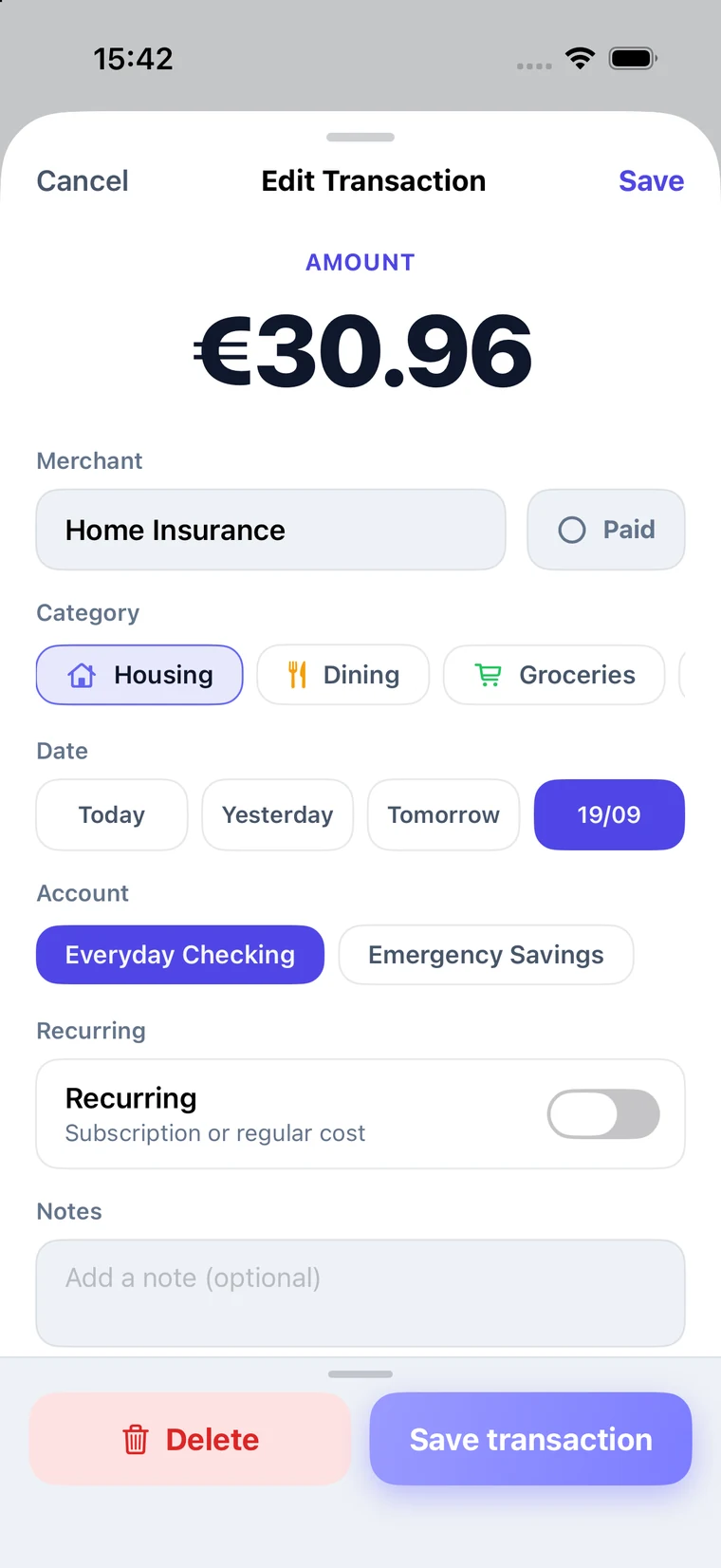
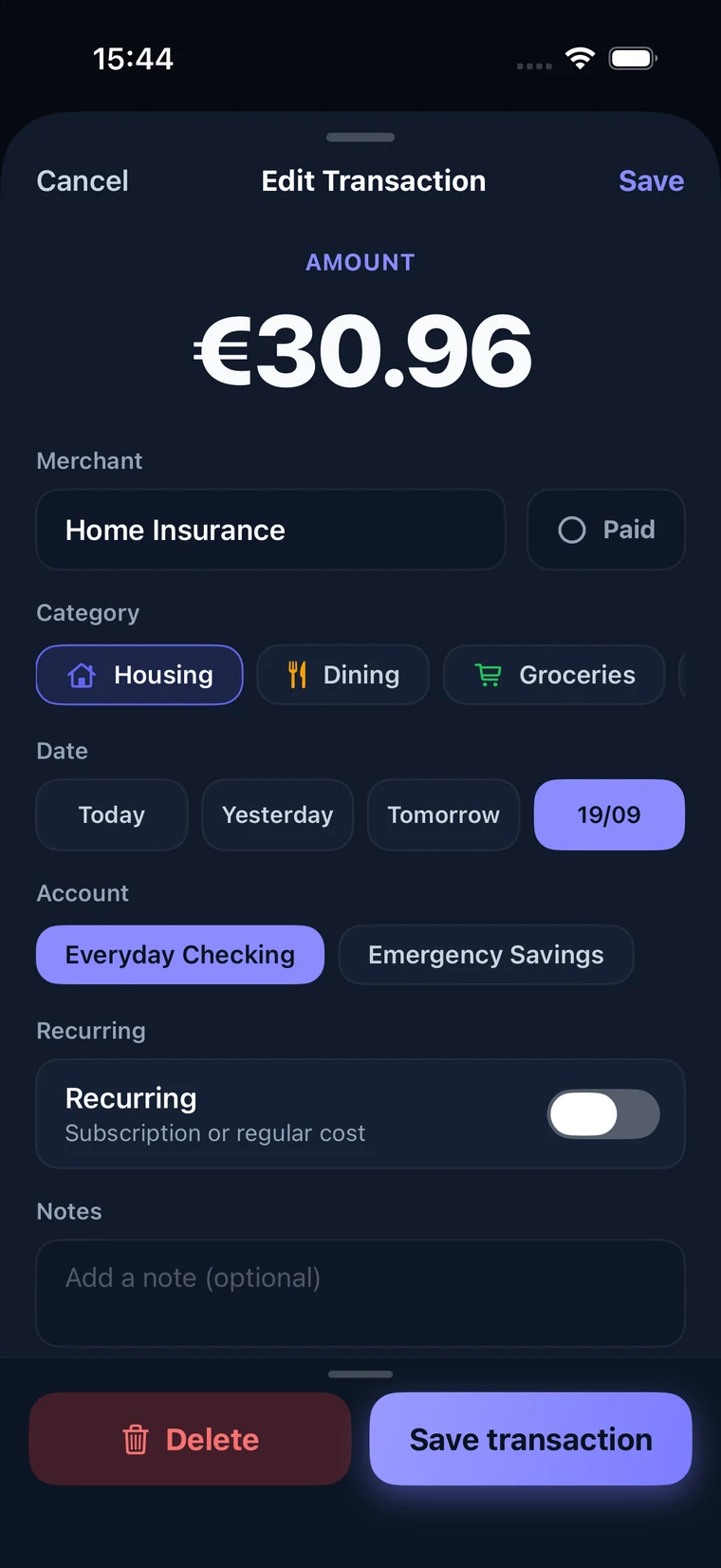
Tap the + button in the centre of the tab bar. The same sheet is used to create and to edit.
- Type: Expense, Income, or Adjust.
- Amount: tap the big number to open the keypad. Digits fill from the right:
5→ €0.05,54→ €0.54,542→ €5.42. - Merchant: who you paid (or who paid you). Required. A Paid/Pending toggle sits right beside it.
- Category: tap a chip. Your current selection always appears first. Tap it again to deselect.
- Date: Today, Yesterday, Tomorrow, or Pick date.
- Sharing and Recurring: split with your partner, and/or repeat on a schedule. Both are visible directly in the sheet; nothing to expand.
- Notes: an optional free-text field, at the bottom of the sheet for every type (Expense, Income, and Adjust alike). Good for a reference number, a reminder of what a lump sum covered, or anything the merchant name doesn't say.
Save with either Save at the top right or Save transaction at the bottom. Save stays greyed out until there's both an amount and a merchant.
Logging an expense without opening the app
FinCampX offers a Log Expense action to the iPhone Shortcuts app. It asks how much and where, saves the expense, and shows a confirmation banner. The app never opens. It's built for the moment you walk out of a shop and want the expense recorded before you forget it.
It records a personal expense dated today and marks it paid: you reach for this once the money has already left your pocket, and a pending expense wouldn't move your Real Cash. Category is optional: leave it out and the expense lands in Uncategorized, where you can categorise it later. For anything shared, recurring, unpaid, or on a different date, use the + sheet.
To trigger it by tapping the back of your phone:
- Open Shortcuts and create a new shortcut.
- Add the Log Expense action.
- Set Amount and Merchant to Ask Each Time.
- Go to Settings → Accessibility → Touch → Back Tap → Triple Tap and choose your shortcut.
Triple-tapping the back of your iPhone now asks for an amount and a merchant, and logs the expense. The same action also works with Siri (“Log an expense in FinCampX”), from Spotlight, from the Action Button, and as a step inside your own shortcuts.
5. Expenses
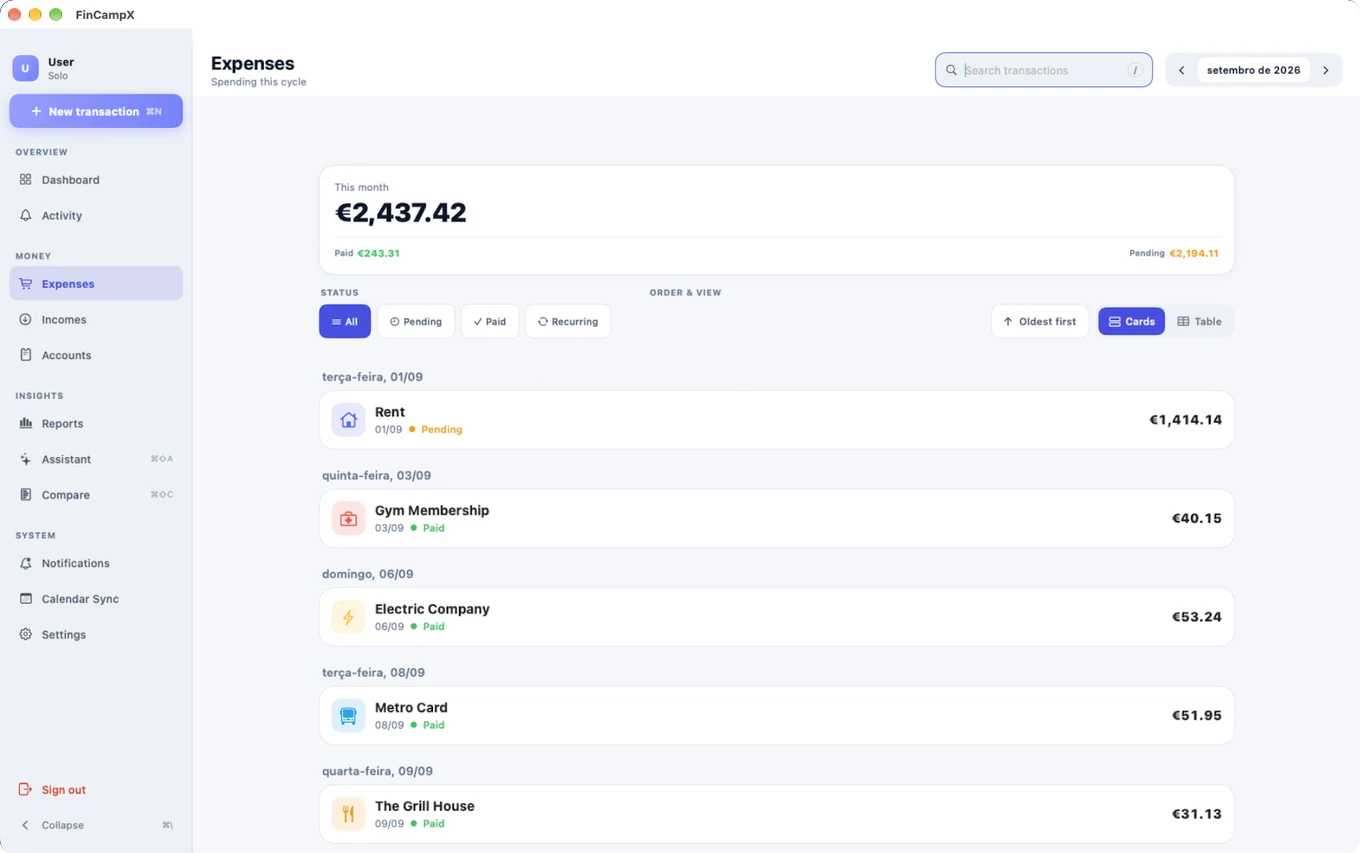
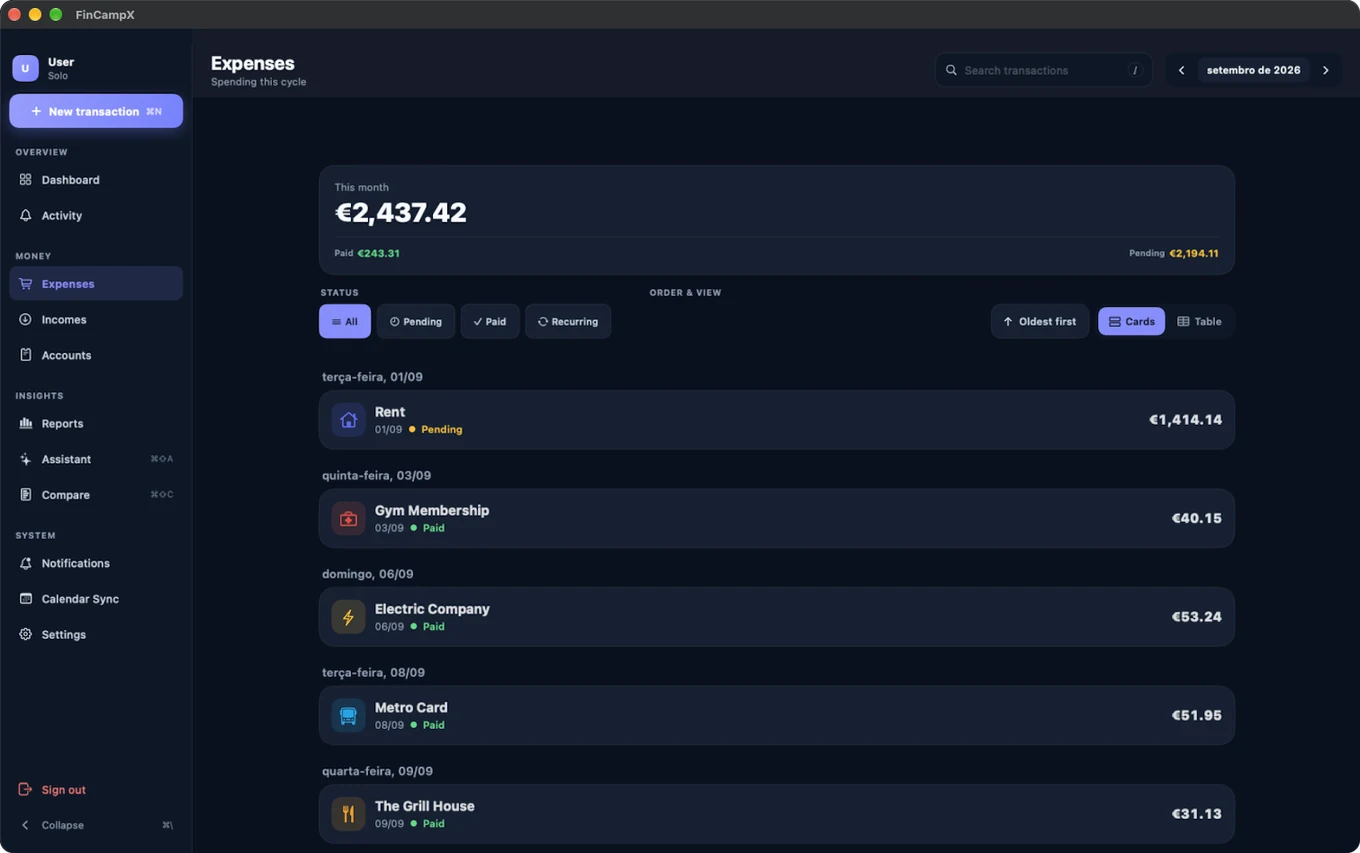
Everything going out, one month at a time. Use the arrows at the top to change month.
Quick add
Type naturally into the lightning-bolt bar and the app parses it: 48.90 Amazon groceries becomes a €48.90 expense at Amazon. Amounts and words are detected automatically.
Search and filters
Search by merchant or amount: typing 25 matches both a merchant containing "25" and any amount containing it, like €25.00 or €125.50, formatted exactly as it appears on the row. Tap the sliders icon to reveal filters:
- Scope: All · Mine · Shared (only with a linked partner; on your own, every expense is yours)
- Status: All · Pending · Paid · Recurring
Closing the filters panel (tap the sliders icon again) resets Scope and Status back to All and returns to the full, unfiltered list. It's a one-tap way back to the default view rather than a toggle that quietly leaves a filter applied out of sight.
I owe / Partner owes
In the current month this is not a separate number. It's the exact same running total as Settlements, every shared expense ever recorded net of every settlement you've made. Page to a past or future month and it switches to that month's own figure instead: only expenses actually marked Paid count, and settlements aren't folded in, since a single month can't meaningfully absorb a lump-sum payment that may have settled several months at once. Only one side is ever non-zero. Full formula: how the balances are calculated.
I expect / Partner expects
Shown alongside the balance above, on every month, not just future ones. This is the whole shared arrangement, independent of whether anything has actually been paid: I expect is your own personal spending plus your share of every shared expense this month; Partner expects is their shared share only; the app never sees your partner's personal spending, so a full total for them isn't knowable here. Tap the ⓘ icon for the my-personal / my-shared breakdown behind your own figure.
Swipe actions
- Swipe right → toggle Paid / Pending.
- Swipe left → Edit.
A coloured dot shows status at a glance: green = paid, amber = pending.
6. Incomes
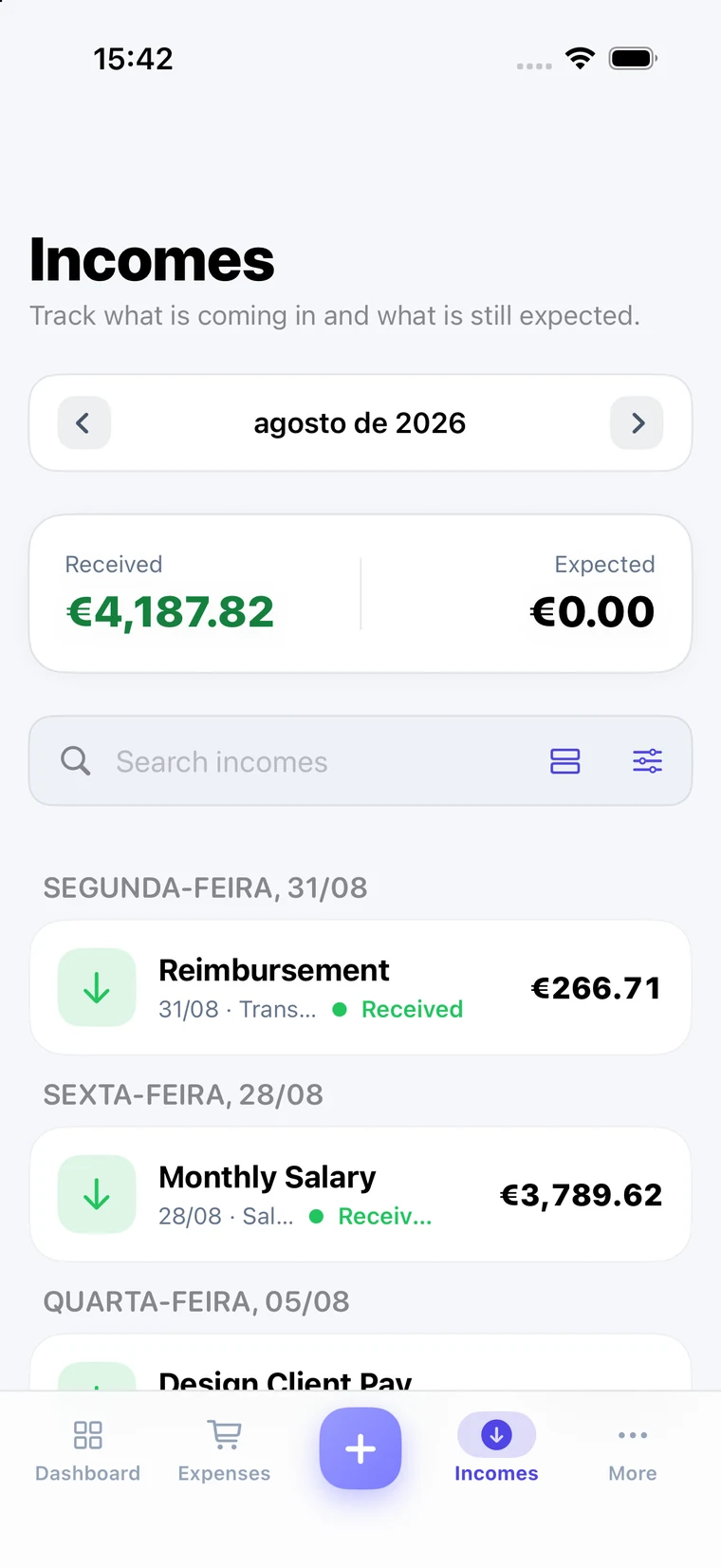
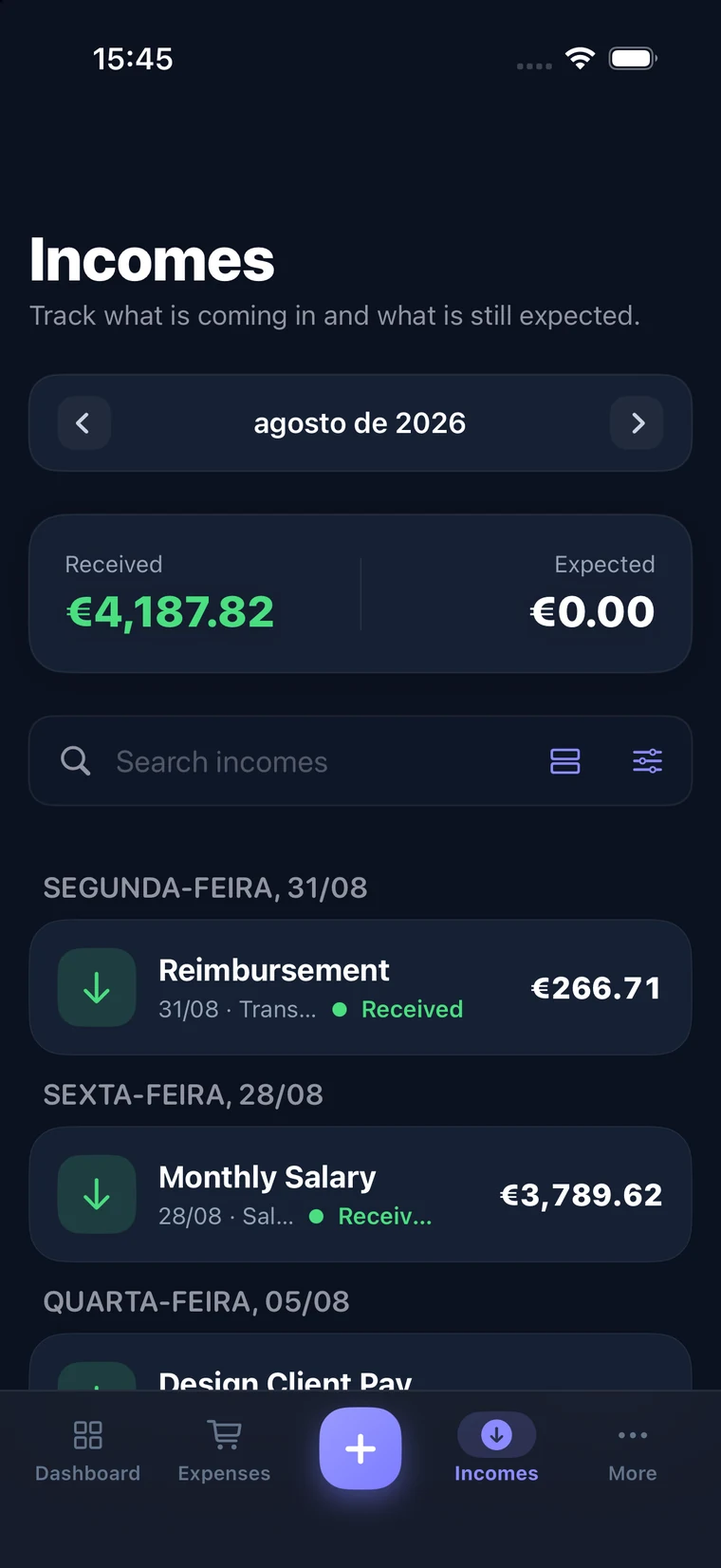
Everything coming in, with two totals at the top:
- Received: money that has actually arrived. This counts towards Real Cash.
- Expected: money still owed to you. This does not count towards Real Cash; it only affects your projection.
Income categories
Incomes use a fixed set, separate from expense categories:
- Salary: regular employment income.
- Freelance: project or contract work.
- Transfer: money moved in from elsewhere.
Swipe actions
- Swipe right → toggle Received / Expected for the month you're viewing.
- Swipe left → Edit.
7. Accounts
Found under More → Accounts on iPhone, or its own row in the sidebar next to Expenses and Incomes on iPad and Mac.
Overview
One row per account: your personal account, the joint account you share with your partner, and any savings pockets. Each shows its last reconciled balance and when you reconciled it.
Reconciling
Open your banking app, read the balance, type it in. That becomes the account's anchor: from then on the app adds only what happens after that moment.
Every reconciliation is kept, so you can see how your balance has been tracked over time. A Never reconciled label means the app is still counting every transaction you've ever recorded; reconcile once and it switches to the anchored, self-correcting behaviour.
Move money between accounts
For moving your own money around: topping up savings, or shifting cash into the joint account. This is a transfer, not spending: your total doesn't change, only the two balances. Don't log these as expenses.
The joint account
There is exactly one joint account per couple, and you both see the same balance. Either of you can reconcile it. Shared expenses are attributed to it automatically, so joint spending stops showing up against a personal balance.
8. Recurring transactions
For anything that repeats: rent, subscriptions, salary. Turn on Recurring, in the transaction sheet's Recurring section.
Frequency
Tap the Frequency button to choose how often the entry repeats. Options: Daily, Weekly, Bi-weekly, Monthly, Bimonthly, Quarterly, Semiannually, or Yearly. The entry then appears automatically on the same day in each following interval.
Ends
By default a recurring entry runs Never-ending. Tap Ends to pick a final date; the series stops there and will not appear in any later month. Tap the ✕ next to the date to go back to never-ending.
Example
A €12.99 monthly subscription starting 13 July with Ends = 30 September produces exactly three entries: 13 July, 13 August, 13 September. October is empty.
Stopping a series
Two ways, depending on what you mean:
- Set an end date: keeps history, stops future occurrences after that date.
- Turn Recurring off: the entry becomes a single one-off transaction on its original date.
Deleting from a series
Deleting a recurring transaction asks you to choose:
- Delete only this occurrence: removes that one month; the rest of the series continues.
- Delete this and future occurrences: stops the series from that point on.
10. Settlements
Found from the Expenses screen: tap the balance icon in the top-right corner (on iPad and Mac, it's its own row in the sidebar instead). Shows the single outstanding balance between you and your partner, built from every shared expense and every settlement already recorded.
Settling up
Tap Settle up, then either use a quick amount (Half or Full amount) or type one on the keypad. Choose the direction (I paid partner / Partner paid me) and confirm.
A settlement records that real money changed hands, and reduces the outstanding balance by that amount. Past settlements are listed under History.
11. Reports
Found under More → Reports.
Period
- This month: the current calendar month.
- Custom: reveals From/To date pickers for any range.
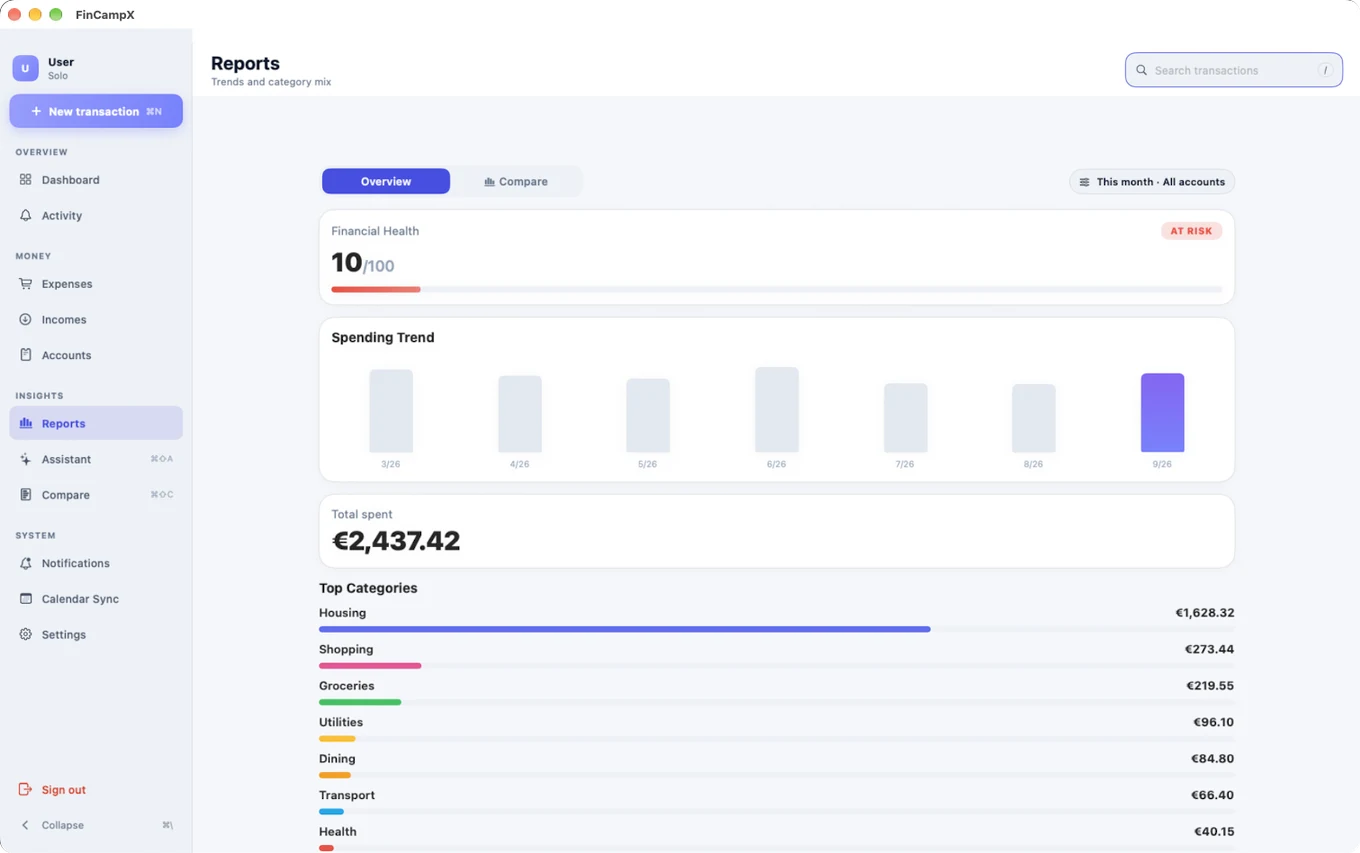
Financial Health score
A 0–100 score with a label: At Risk, Stable, Good, or Excellent, see how it's scored.
Spending Trend
Monthly spending as bars, with the most recent month highlighted.
Top Categories
Where your money went, ranked, each with a proportional bar. Tap any category to expand it and see the individual transactions behind that number for the selected period. Tap again to collapse.
12. Compare
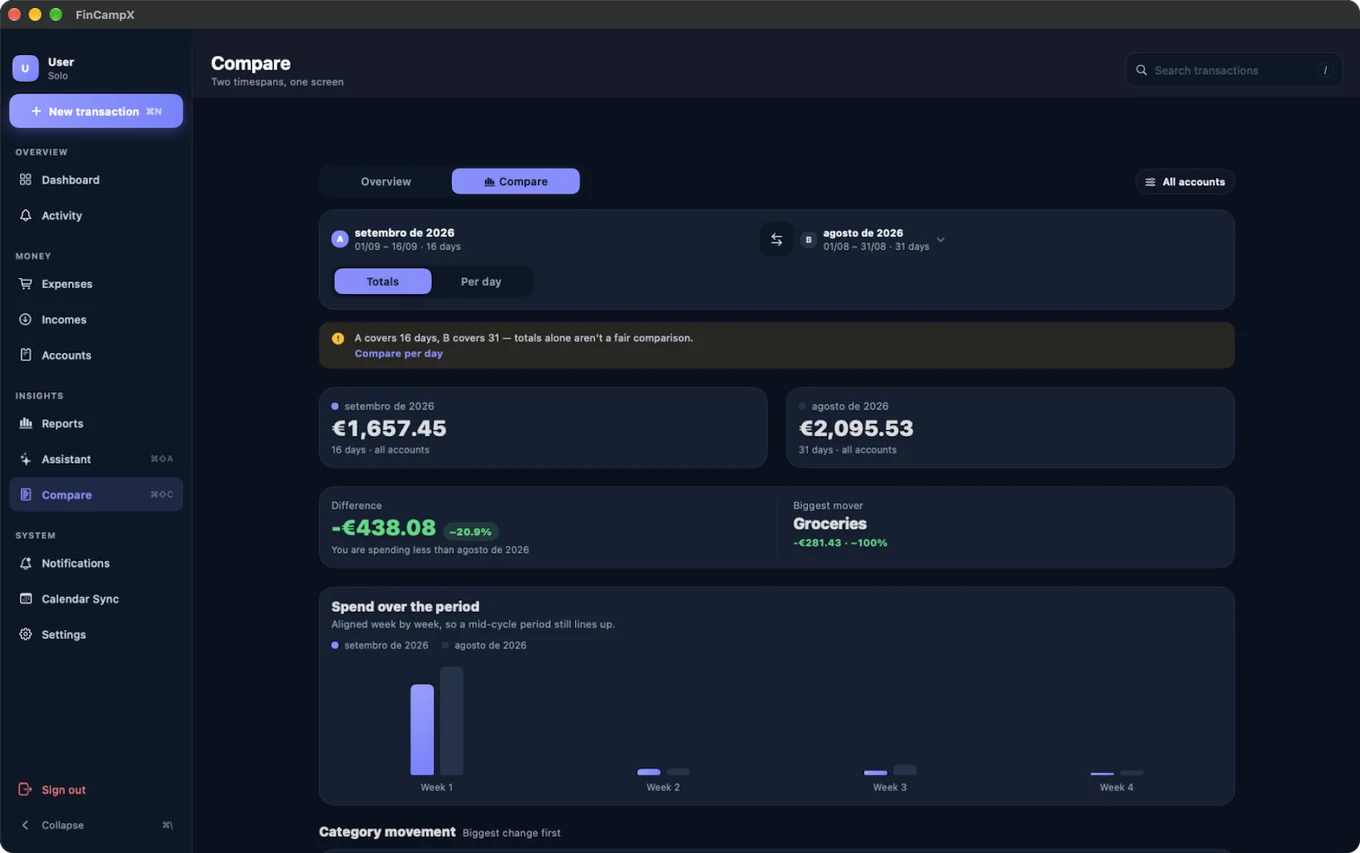
Found under More → Compare, or the keyboard shortcut ⌘⇧C on iPad and Mac. Puts two timespans side by side, so you can see whether you're spending more or less, not just how much.
Picking what to compare
Set timespan A and timespan B independently, any month or a custom range for each, and an account scope (all accounts, or one in particular). Use the swap button between them if you picked the two the wrong way round.
Totals vs Per day
When the two spans cover a different number of days, a plain total isn't a fair comparison. Switch to Per day and both figures are divided by their own length, so a 16-day span compares honestly against a 31-day one.
Difference and Biggest mover
Difference is A minus B, shown as both an amount and a percentage. Biggest mover is the single category that changed the most between the two spans, which is often more useful than the headline total for spotting what actually happened.
Spend over the period
A week-by-week bar chart for each span, aligned so week 1 of A lines up with week 1 of B even when the two spans start on different days of the month.
Category movement
Every category, ranked by how much it changed between the two spans, biggest change first.
13. Settings
Found under More → Settings.
Partner
Invite a partner by email. They get a notification on their phone, an email, and an entry in their Activity feed; tapping any of the three opens their Settings with an Accept or Decline choice. Once they accept, Linked appears and sharing, splits, and settlements become available.
While a request is waiting you'll see Sent, and a Cancel request button. Cancelling withdraws it completely; it disappears from their feed and notification badge as well, so they're never left with an invitation that no longer exists.
Default Split
The ratio pre-filled on new shared expenses (e.g. 62% you / 38% partner). The two must total 100%. You can always override it per transaction.
Financial Month
By default your "month" is the calendar month: the 1st through the last day. If your pay cycle or credit card statement doesn't line up with that, set a closing day (1–31) instead. With a closing day of 25, for example, the cycle labeled "July" runs from 26 June through 25 July; every balance, budget, and report shifts to match.
Categories
Tap Categories to create, edit, and delete your expense categories. Each one has a name, an icon, a colour, and a Shared switch: shared categories are visible to both partners and can be used on shared expenses; personal ones stay private to you. You can also create a category on the fly while adding an expense; open the category picker, tap More, then Add New at the bottom of the list.
Appearance
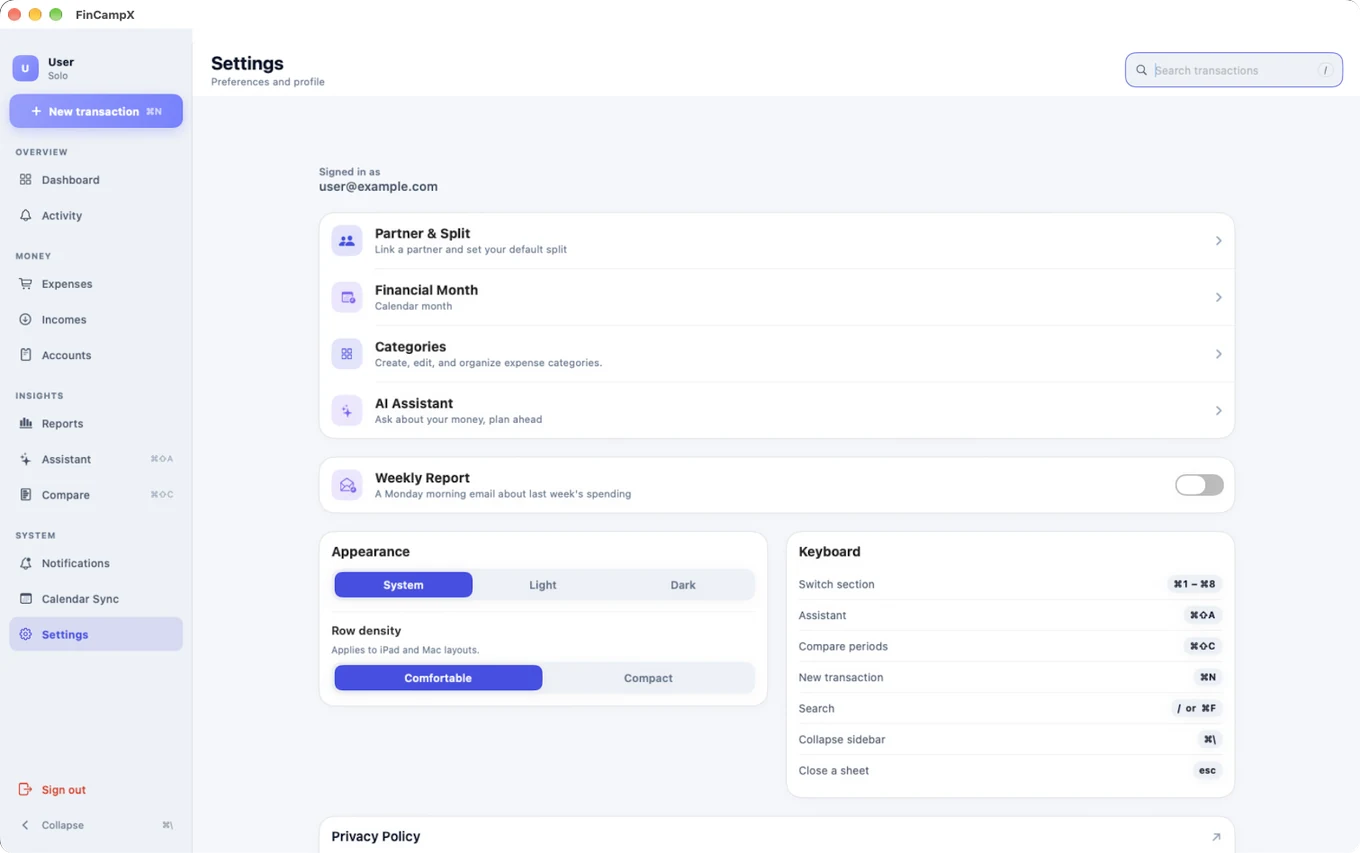
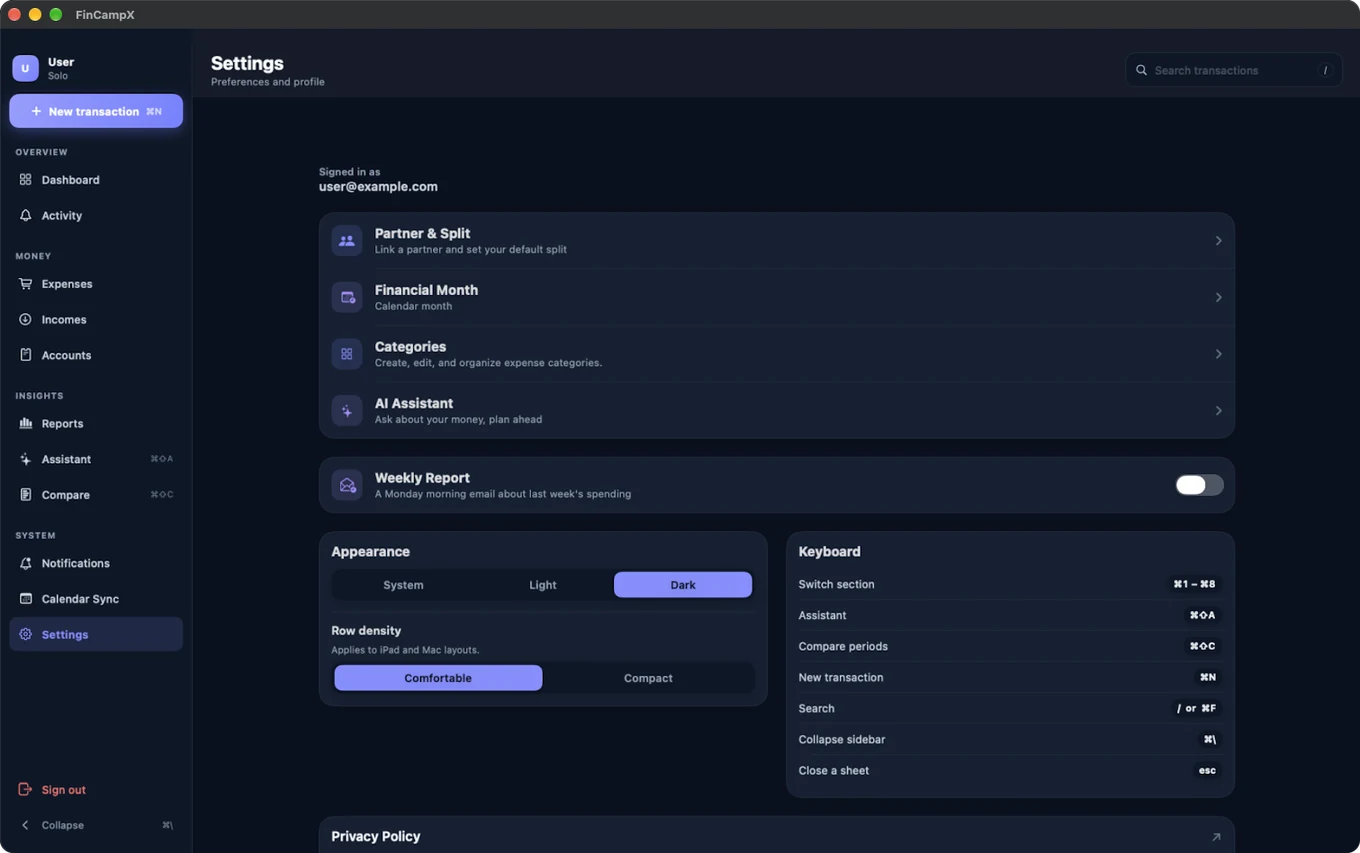
System follows your device; Light and Dark force a theme. Applies instantly. On iPad and Mac, Row density switches list rows between Comfortable and Compact, fitting more on screen without changing anything else.
Keyboard shortcuts
On iPad and Mac, most of the app is one keystroke away:
| Shortcut | Action |
|---|---|
⌘1–⌘8 | Switch section |
⌘N | New transaction |
⌘⇧C | Compare periods |
/ or ⌘F | Search |
⌘\ | Collapse sidebar |
esc | Close a sheet |
Privacy Policy
A direct link to this site's Privacy Policy, for reference from inside the app.
14. Notifications
Found under More → Notifications.
Push notifications
Turn on to allow alerts, for example when your partner adds a shared expense. Turning it off opens the iOS Settings app, since only iOS can revoke the permission.
Daily reminder
A once-a-day nudge asking whether you logged everything you spent. Turn it on and pick the time; 9:00 PM works well, at the end of the day. It repeats every day until you turn it off, and survives restarts.
Send test notification
Fires one immediately, to confirm notifications are working.
15. Calendar Sync
Found under More → Calendar Sync. Puts your recurring bills on your phone's own Calendar app, so they show up next to everything else on your schedule; no need to open FinCampX to see what's due.
Turning it on
Toggle Calendar access and grant permission when iOS asks. Then pick a Personal calendar for your own recurring bills and a Shared calendar for shared ones: any calendar already in your Calendar app, or a new one you create there first.
Syncing
Tap Sync recurring expenses whenever you want the calendar to catch up. Only recurring expenses sync: rent, subscriptions, anything that repeats. A one-off purchase already happened, so it isn't worth a calendar entry. Re-syncing updates the existing events instead of creating duplicates, and removes calendar events for anything deleted or switched from recurring down to a one-off; the calendar stays in step without any manual tidying.
16. All calculations
Every number in the app, and exactly where it comes from.
How data flows, end to end
Nothing below is pre-computed or cached against a stale total; every figure in the app is derived fresh from your transactions, following this path:
Pending Obligations · Partner Balance · ReportsAll follow the cycle.
See Real Cash below for how account balances roll up, and Financial Month for the closing day option.
Real Cash: "Money you have now"
Real Cash is derived: the app never stores a "current balance" you have to keep in sync. It adds up the accounts that are yours, and each is calculated from the last balance you reconciled:
Only confirmed money counts. Expected incomes and pending expenses are deliberately excluded; they belong to the forecast, not to your wallet.
Anything already inside your reconciled balance. When you reconcile, you're telling the app "this is what I really have right now". Everything dated on or before that moment is already baked into the figure you typed, so the app won't subtract it a second time. This is what stops small mistakes following you around forever.
Anything dated in the future, even if you've marked it Paid. A card bill dated the 11th of next month hasn't left your account yet, so it can't reduce what you have today; it shows up in Projected Month End instead. If you mark something paid and the balance doesn't move, check its date first.
Settling up moves your Real Cash. When your partner pays you back, that money really does arrive in an account, so that balance goes up, and down when you pay them. Which account matters: partners often square up into the joint account, and the app records that, so the money shows against the right balance instead of inflating your personal one.
For a shared expense, only the amount that actually left your account counts here: if your partner paid, none of it touches your Real Cash, even though your share still shows up as a debt on the partner balance until you settle up.
Worked example
- Personal account, reconciled to €30.84 on 25 July
- Coffee, €3.80: Paid, dated 16 July → €0.00 (before the reconciliation; already inside the €30.84)
- Website income, €44.25: Received 26 July → +€44.25
- Groceries, €25.90: Paid 27 July → −€25.90
- Card bill, €337.83: Paid but dated 11 August → €0.00 (hasn't left yet; counts in Projected Month End)
- GoldEnergy, €135.02: still Pending → €0.00 (not counted)
- Savings pocket, reconciled to €401.60 → +€401.60 (yours, just not for spending today)
- Joint account, €530.77 → not counted (shown separately; your 62% share is €329.08)
Real Cash = 30.84 + 44.25 − 25.90 + 401.60 = €450.79. The joint €530.77 sits below it on its own, because that money isn't only yours: adding all of it would overstate what you have, and leaving it out entirely would hide it.
Transfers: moving your own money around
Moving money between two of your own accounts is not spending. A transfer leaves one account and lands in another, so your total wealth doesn't change; only the two balances shift.
This matters more than it sounds. If you log a savings top-up as an expense, the app permanently believes that money is gone, and your balance reads lower than reality for good. Use Accounts → Move money between accounts instead. Transfers never appear in your spending totals, category breakdowns or expense ratio, and the same rule applies in Monthly Projections: a transfer between two of your own accounts nets to zero there too, while one that crosses into the joint account counts as a real inflow or outflow, because that money did genuinely leave (or arrive in) your own pot.
Projected Month End
The same picture as Real Cash, but including what hasn't happened yet, including anything you've marked paid with a future date.
Available to Spend
Safe Daily
On the last day of the month that is your whole Available to Spend: there is one day left to spend it in.
Partner balance (I owe / Partner owes)
Both the Settlements screen and the Expenses header split each shared expense the same way:
Where they differ is which expenses get summed, and whether settlements are folded in:
Settlements screen: all-time balance
A positive net shows as Partner owes; a negative net as I owe. Only one side is ever non-zero. This is the number to trust for "who owes whom, overall".
Worked example
- You pay €100 groceries, split 62/38 → partner owes you €38
- Partner pays €50 dinner, split 50/50 → you owe them €25
- Net: 38 − 25 = partner owes you €13
- Partner then settles €13 → balance €0.00
Expenses header: depends on which month you're viewing
The current month runs no separate calculation at all: it shows this same all-time balance, so whatever Settlements reads, the Expenses header reads too; they're one number, not two that happen to agree.
Page to a past or future month and the header switches to that month's own figure:
Only expenses actually marked Paid count: an unpaid bill hasn't left anyone's pocket yet, so it isn't a debt regardless of whether its due date has passed. This applies identically whether you're looking back or forward; a future month is not treated as a projection here (that's what I expect / Partner expects, below, is for). Settlements are never folded into a single month's figure, since a lump-sum payment can settle several months at once and a month-scoped number can't meaningfully absorb that. It is expected for this figure to disagree with Settlements' running total the moment you page away from the current month; that's a narrower question, not a wrong answer.
Worked example
- Today, viewing the current month: header reads partner owes you €39.25, identical to Settlements, because it is Settlements' figure.
- Page back to June: a €15 shared bill dated 16 June, partner paid, your share 100%, marked Paid → partner owes you €15 for June alone.
- A €135 energy bill also dated June, you paid, still Pending → excluded from June's figure entirely, even though it's already in the list; nobody is out of pocket for it yet.
- June's header shows just partner owes you €15, unrelated to the €39.25 running total shown for the current month.
I expect / Partner expects: the arrangement, not the debt
Shown on every month, current, past or future alike, and never netted against each other. This counts a shared expense the moment it exists (paid or not), so it answers "what have we agreed to," not "who's out of pocket right now." Marking something Paid or settling up never moves it; only I owe / Partner owes responds to those. Partner expects is shared-share only, never a full total, because the app never sees your partner's personal spending.
Splits
Splits are whole percentages that must total 100. Each person's share is:
Any rounding remainder (from cents that don't divide evenly) is distributed so the shares always add back up to the exact total; money is never invented or lost.
Recurrence
A recurring entry generates one occurrence per interval from its start date, stopping at the earlier of its end date or the month you're viewing. With no end date it continues indefinitely.
Financial Health score
Out of 100, built from four parts:
| Component | Worth | Based on |
|---|---|---|
| Savings rate | up to 40 | How much of your income you keep |
| Recurring burden | up to 30 | How much income is locked into recurring costs |
| Pending count | up to 20 | How many expenses are left unpaid |
| Base | 10 | Always granted |
| Score | Label |
|---|---|
| 85–100 | Excellent |
| 70–84 | Good |
| 50–69 | Stable |
| 0–49 | At Risk |
Other metrics
| Metric | Meaning |
|---|---|
| Savings Rate | The share of income you didn't spend, measured over the last fully closed cycle, not the one in progress. The current cycle is still being written (a salary that lands on the closing day hasn't arrived yet), so judging it early would read as a misleadingly low rate for no reason but timing. Only money that actually moved (paid/received) counts. |
| Due This Month | Total of expenses genuinely due this cycle, resolved occurrence by occurrence, see Pending Obligations above. |
17. FAQ
My Real Cash looks too high or too low.
Reconcile the account. Go to More → Accounts, tap Reconcile, and type the balance your bank actually shows. Whatever caused the gap stops mattering from that moment on; you don't need to hunt down the mistake first.
If it drifts again afterwards, the usual causes are worth checking: a transaction entered twice, money moved to savings logged as an expense instead of a transfer, or a recurring bill marked paid for a month it wasn't. A balance that's too high often means a settlement was recorded for a shared bill you haven't actually paid yet.
I marked something Paid but Real Cash didn't move.
Check its date first. Two dates keep an item out of "money you have now" on purpose: a date in the future (the money hasn't left yet; it's in Projected Month End), and a date on or before your last reconciliation (it's already inside the balance you typed). Both are working as intended.
Do I have to get my starting balance right the first time?
No, and this is the one thing that changed most. Balances are reconciled per account, as often as you like. There's no single number you have to set perfectly once and live with.
I marked an income Received but Real Cash didn't change.
It should change immediately. Check you marked it Received rather than Expected; the dot on the row is green when received.
My recurring transaction won't stop.
Open it and either set Ends to a final date, or turn Recurring off entirely to make it a one-off. Both keep your past occurrences.
Why does it ask who paid on some expenses but not others?
Only shared expenses need it; that's what creates the debt. A personal expense is always paid by you.
Why is a transaction in "Uncategorized" in Reports?
It has no category. Open it and pick one; Reports updates straight away. Expenses logged from a shortcut or Back Tap land here whenever you skip the category.
Can I add my own expense categories?
Yes, go to More → Settings → Categories to create, edit, or delete them, each with its own name, icon, colour, and a Shared switch. You can also add one on the fly from the category picker inside the transaction sheet: tap More → Add New. Income categories are still a fixed set (Salary, Freelance, Transfer).
What's the difference between an Adjustment and an Expense?
An adjustment corrects your balance without being real spending, so it's excluded from reports and category totals. Use it to reconcile with your bank rather than to record a purchase.
Do I have to settle the exact amount?
No. Use Half, Full amount, or type any amount. The remainder stays on the balance.
Can I see my recurring bills on my phone's Calendar app?
Yes, turn on Calendar Sync (More → Calendar Sync), pick a calendar, and tap Sync. Only recurring expenses sync; a one-off purchase won't show up there.
What does Compare do that Reports doesn't?
Reports describes one period on its own. Compare puts two periods side by side, with a Per-day option for spans of different lengths, so you can tell whether you're actually spending more, not just how the two totals happen to look.